How to Place a Tax-Exempt Order
Watch the Video Tutorial
Watch the step-by-step video below to learn how to place a tax-exempt order during checkout.
Written Instructions
Step 1 — Edit the Shipping Address
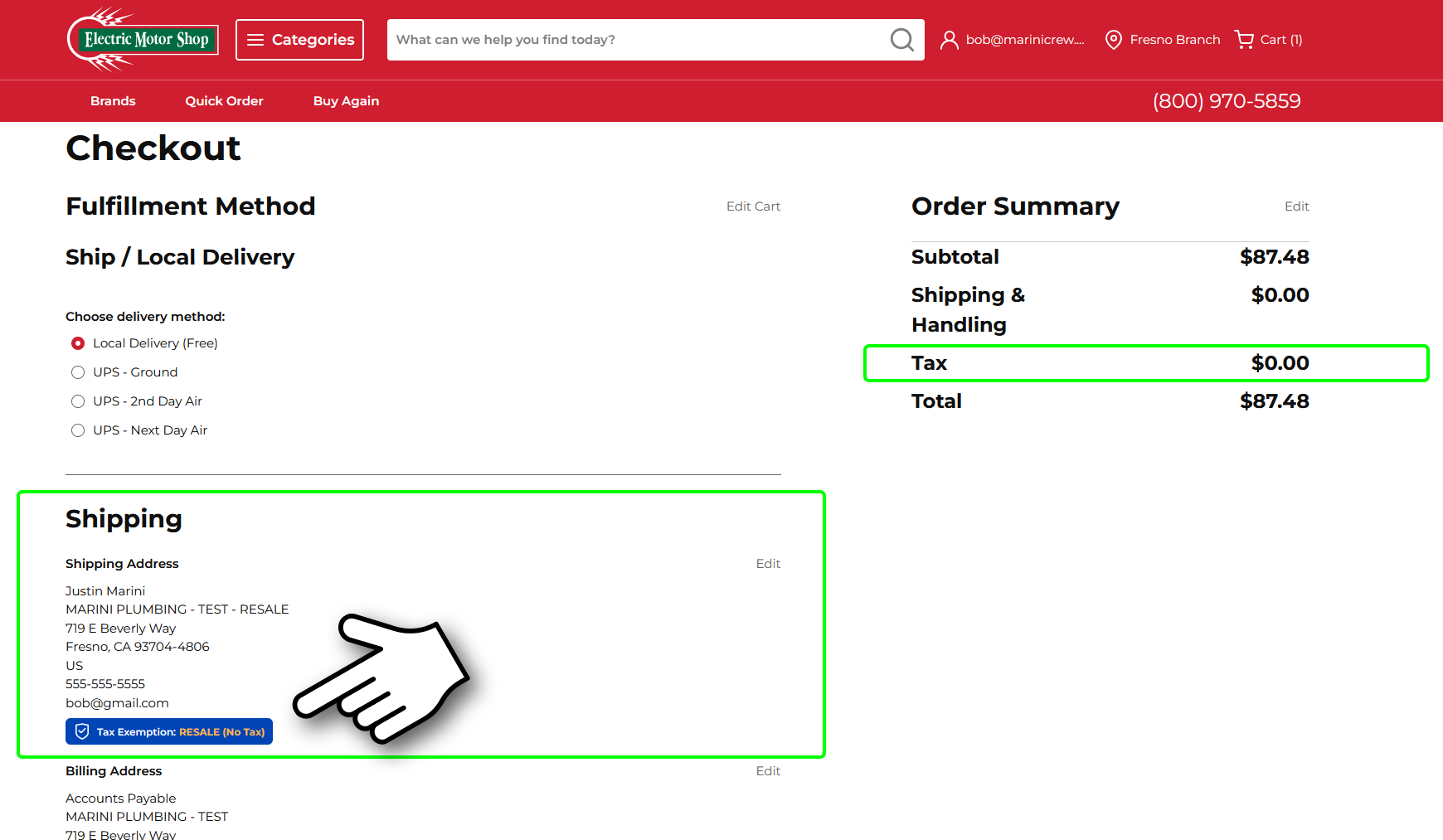
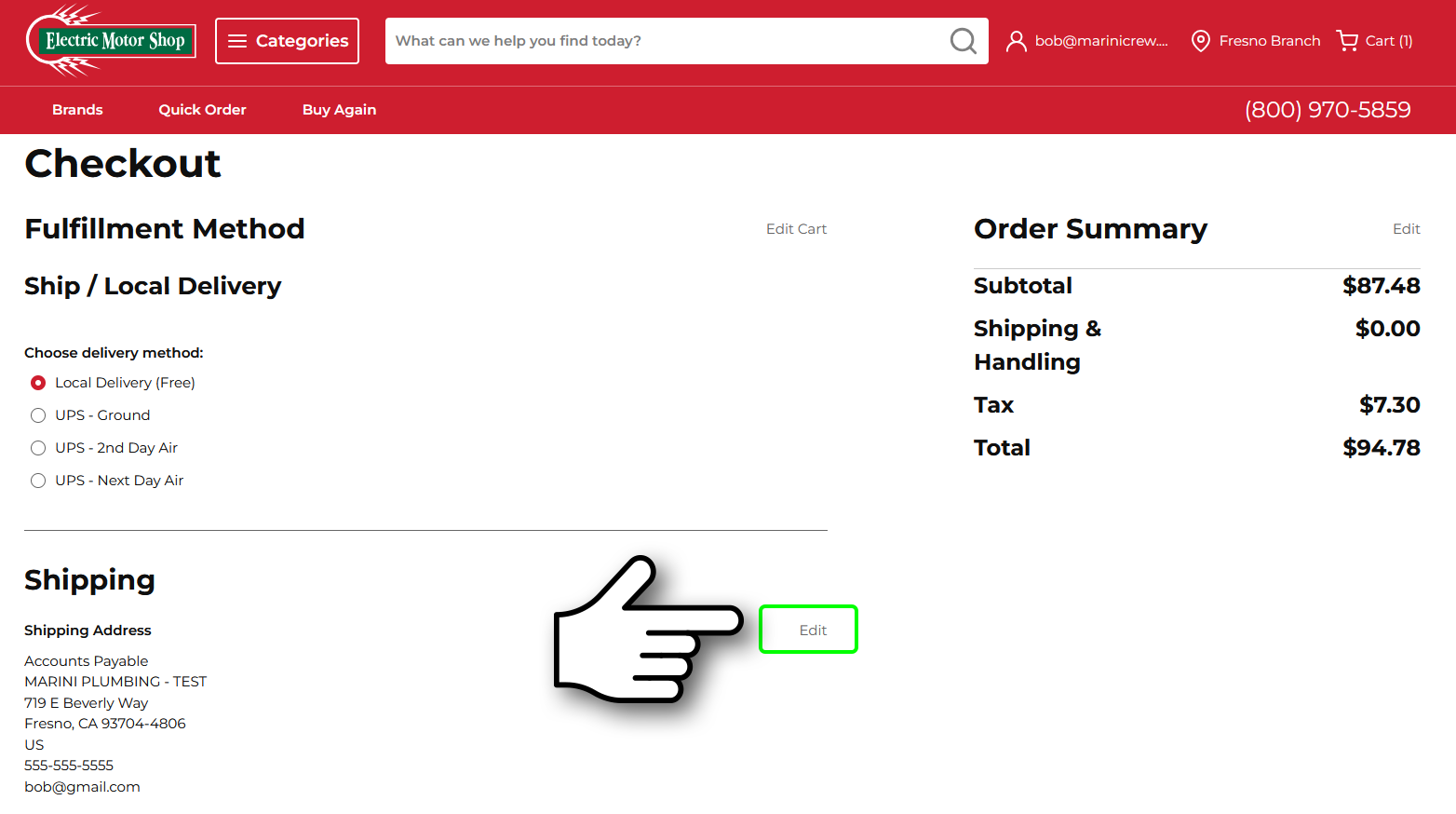
On the Checkout page, review the current Shipping Address.
- If the address already shows a blue Tax Exemption badge, no changes are needed.

- If the badge is not displayed, click the Edit link next to the Shipping Address section to open your Address Book.
Step 2 — Select the Tax-Exempt Address
In the Address Book panel on the right side of the screen:
- Look for the shipping address that contains a blue Tax Exemption badge.
- Click Select for the tax-exempt address you want to use.
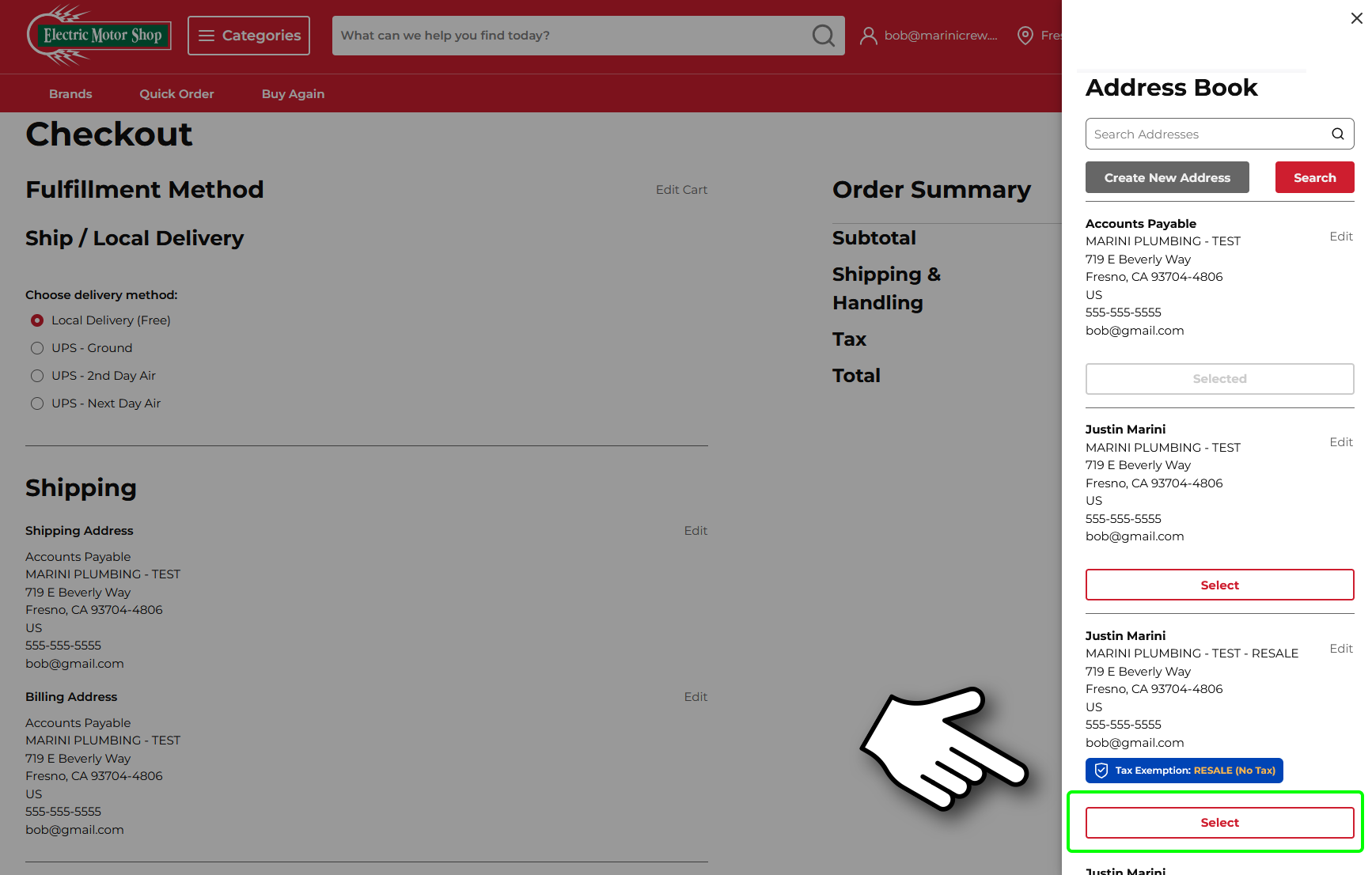
Note: Your account may have multiple addresses and may look different than the example shown below.
Step 3 — Verify Tax Has Been Removed
After selecting the tax-exempt address:
- The selected Shipping Address should now display the Tax Exemption badge.
- The Tax amount in the Order Summary should update to $0.00.